
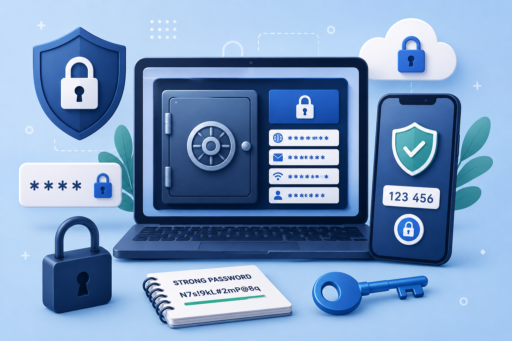
Learning how to manage passwords securely is one of the easiest ways to protect your online life. However, many people still struggle with the same problem: they know they should use strong and unique passwords, but they are afraid they will forget them.
As a result, they reuse the same password across many websites, save passwords in unsafe places, or create simple passwords that are easy to remember but also easy to guess. Unfortunately, this can put email accounts, banking apps, social media profiles, shopping accounts, and even personal documents at risk.
The good news is that you do not need to memorize dozens of complicated passwords. Instead, you need a simple system. In this guide, you will learn how to manage passwords securely without forgetting them, even if you are not a tech expert.
Why Password Management Matters More Than Ever
Passwords are still one of the main keys to your digital life. Your email password, for example, can give access to password reset links for many other accounts. Therefore, if someone gets into your email, they may also try to access your bank, cloud storage, social media, and shopping accounts.
In addition, data breaches happen often. When a website gets hacked, usernames and passwords may be leaked. If you use the same password on several websites, one leak can create problems across many accounts.
That is why you should not only create strong passwords, but also manage them in a smart way.
The Biggest Password Mistakes People Make
Before building a safer system, it helps to understand the common mistakes. Many people do not get hacked because they are targeted by a professional hacker. Instead, they get exposed because of simple habits.
1. Using the Same Password Everywhere
This is one of the most dangerous mistakes. If you use the same password for your email, Facebook, online store accounts, and banking apps, one leaked password can open the door to everything.
2. Creating Easy Passwords
Passwords like 123456, password123, your name, birthday, phone number, or favorite team are easy to remember. However, they are also easy to guess.
3. Saving Passwords in Notes Apps
Writing passwords in a phone note may feel convenient. However, if your phone is unlocked, synced, shared, or compromised, your passwords may be exposed.
4. Sending Passwords Through Messages
Some people send passwords to themselves or others through WhatsApp, email, or text messages. Although this feels quick, it is not a good long-term habit.
5. Ignoring Two-Factor Authentication
A strong password is important. However, two-factor authentication gives you an extra layer of protection. Without it, your account may be easier to break into if your password is leaked.
What Makes a Password Strong?
A strong password should be difficult for others to guess and difficult for automated tools to crack. However, it does not always have to be impossible for you to manage.
A good password should usually be:
- Long enough
- Unique for each account
- Not based on personal information
- Not reused on other websites
- Stored safely
In general, length matters a lot. A longer password or passphrase can be much stronger than a short password with random symbols.
Use a Password Manager
The easiest way to manage passwords securely without forgetting them is to use a password manager. A password manager is an app that stores your passwords inside an encrypted vault. Instead of remembering every password, you only remember one strong master password.
Popular password managers include:
With a password manager, you can create unique passwords for every account. For example, your email can have one password, your bank can have another, and your social media accounts can each have different passwords.
This means that if one website is breached, your other accounts remain safer.
How Password Managers Help You Avoid Forgetting Passwords
Password managers solve the memory problem. You do not need to remember every login. Instead, the password manager saves them for you and fills them in when needed.
Most password managers can:
- Generate strong passwords
- Save login details automatically
- Fill passwords on websites and apps
- Sync across phone, laptop, and browser
- Warn you about weak or reused passwords
- Help you organize passwords into folders
Therefore, you can use stronger passwords without worrying about forgetting them.
Choose One Strong Master Password
Your master password is the key to your password manager. Because of that, it must be strong, memorable, and private.
A good way to create a master password is to use a long passphrase. For example, instead of using one short word, create a sentence-like phrase that is easy for you to remember but hard for others to guess.
Do not use your name, birthday, child’s name, city, or anything obvious from your social media profiles. Also, never reuse your master password anywhere else.
Use Passphrases for Important Accounts
If you do not want to rely completely on random passwords for every account, passphrases can help. A passphrase is a longer password made from several words.
For example, a passphrase can be easier to remember than a random set of characters. However, it should still be unique and not based on a famous quote or personal information.
This is especially useful for accounts you may need to access manually, such as your email, password manager, or main device login.
Do Not Reuse Passwords
If there is one rule you should never ignore, it is this: do not reuse passwords.
Even if your password is strong, reusing it makes it risky. A strong password leaked from one website can still be used to attack your other accounts.
For example, if your old shopping account gets hacked and you used the same password for your email, attackers may try that same password on your email account.
That is why every important account should have its own unique password.
Turn On Two-Factor Authentication
Two-factor authentication, also called 2FA, adds another step when you log in. After entering your password, you may need a code from an app, a security key, or a notification on your phone.
This makes your account safer because a stolen password alone may not be enough to log in.
Good 2FA options include:
- Authenticator apps
- Security keys
- Backup codes stored safely
SMS codes are better than having no 2FA, but authenticator apps and security keys are usually stronger options.
You can learn more about account protection from trusted cybersecurity resources such as CISA password safety guidance.
Save Backup Codes Safely
When you enable two-factor authentication, many services give you backup codes. These codes help you regain access if you lose your phone or authenticator app.
However, backup codes must be stored carefully. Do not leave them in an open note on your phone. Instead, save them inside your password manager or print them and keep them in a safe place.
Should You Save Passwords in Your Browser?
Most browsers can save passwords. This is convenient, but it may not be the best option for everyone.
Browser password saving can be useful for basic users. However, a dedicated password manager usually gives you better organization, stronger security features, cross-platform control, and password health checks.
If you use a browser password manager, make sure your device is protected with a strong login password, screen lock, and updated software.
How to Organize Your Passwords
Good organization makes password management easier. Inside your password manager, you can create categories such as:
- Email accounts
- Banking and finance
- Social media
- Shopping accounts
- Work tools
- Cloud storage
- Streaming services
This helps you find what you need quickly without creating messy notes or duplicate passwords.
Update Weak and Reused Passwords First
If you already have many accounts, do not feel overwhelmed. You do not need to fix everything in one day. Start with the most important accounts first.
Begin with:
- Email accounts
- Banking and payment apps
- Cloud storage
- Social media accounts
- Work accounts
- Shopping accounts with saved cards
After that, update less important accounts over time.
Use Password Health Reports
Many password managers include a password health feature. This feature can show you:
- Weak passwords
- Reused passwords
- Old passwords
- Leaked passwords
- Accounts without 2FA
This is helpful because it gives you a clear action list. Instead of guessing, you can see which accounts need attention first.
What to Do If You Forget a Password
If you forget a password, do not panic. Most websites allow you to reset it through your email or phone number.
However, you should be careful. Only reset passwords from the official website or app. Do not click password reset links from suspicious emails unless you are sure they are real.
If you receive a password reset email you did not request, someone may be trying to access your account. In that case, change your password and enable 2FA if it is not already active.
What to Do If a Password Is Leaked
If you discover that one of your passwords was leaked, act quickly.
- Change the password immediately.
- Do not reuse the old password anywhere else.
- Check whether the same password was used on other accounts.
- Enable two-factor authentication.
- Review recent login activity.
You can also use services like Have I Been Pwned to check whether your email appeared in known data breaches.
Do Not Share Passwords Casually
Sometimes people share passwords with family members, friends, or coworkers. Although this may be necessary in some situations, it should be done carefully.
If you need to share access, use the secure sharing feature inside your password manager instead of sending the password through chat or email.
Also, avoid sharing your main email password, banking password, or password manager master password with anyone.
Protect Your Devices Too
Password security is not only about passwords. Your devices also matter. If someone can access your unlocked phone or laptop, they may access your accounts.
To protect your devices:
- Use a strong screen lock
- Keep your phone and computer updated
- Do not install unknown apps
- Use antivirus protection when needed
- Lock your device when you are away
- Avoid using public computers for sensitive logins
For more online safety tips, you can read this related guide: Online Security Tips 2026: Protect Your Data and Privacy.
Be Careful on Public Wi-Fi
Public Wi-Fi can be risky, especially in airports, hotels, cafes, and malls. If the network is unsafe, attackers may try to monitor activity or trick users with fake login pages.
When using public Wi-Fi, avoid logging in to sensitive accounts unless necessary. Also, use mobile data for banking apps when possible.
You can also read this related article: Airport WiFi Security: Best Ways to Protect Your Data (2026).
Use Different Emails for Different Purposes
Another helpful strategy is to separate your email accounts. For example, you can use one email for banking, another for newsletters, and another for casual signups.
This makes your digital life more organized. In addition, it can reduce spam and make it easier to notice suspicious activity.
A Simple Password System You Can Follow
Here is a simple system to manage passwords securely without forgetting them:
- Choose a trusted password manager.
- Create one strong master password.
- Turn on two-factor authentication for your password manager.
- Save your most important accounts first.
- Replace reused passwords with unique ones.
- Enable 2FA for email, bank, and social media accounts.
- Save backup codes safely.
- Review your password health once a month.
This system is simple, but it can greatly improve your online security.
How Often Should You Change Passwords?
You do not need to change every password every few weeks without a reason. In fact, constantly changing passwords can cause people to create weaker passwords.
Instead, change your password when:
- A service reports a data breach
- You reused the password somewhere else
- You shared the password with someone
- You notice suspicious account activity
- The password is weak or old
For important accounts, it is also smart to review your security settings regularly.
Extra Tips to Stay Safe While You Manage Passwords Securely
Here are some additional tips that can help:
- Do not click suspicious login links.
- Always check the website address before entering a password.
- Use official apps instead of unknown third-party apps.
- Do not save passwords on shared computers.
- Remove old accounts you no longer use.
- Review connected apps and devices regularly.
If you want to learn how to avoid fake websites, read this guide: How to Identify Unsafe Websites in Seconds.
Final Thoughts on How to Manage Passwords Securely
You do not need to memorize every password to stay safe online. The smarter approach is to build a simple system that helps you create, store, and protect strong passwords.
The best way to manage passwords securely is to use a trusted password manager, create unique passwords for every account, enable two-factor authentication, and protect your devices.
Once this system is in place, password security becomes much easier. You will no longer need to rely on memory, sticky notes, repeated passwords, or risky shortcuts.
In the end, strong password habits can protect your money, privacy, personal data, and online identity. Start with your most important accounts today, and improve the rest step by step.